


A Guide to School Tech Terms for Parents
Simple definitions for all the tech acronyms and buzzwords you'll hear this school year.

Schools use a lot of technology, and that comes with a lot of new vocabulary. 1:1. LMS. SIS. BYOD. To understand what technology is being used, parents often have to navigate a maze of acronyms, buzzwords, and technical terms. There are no dumb questions here—just a glossary of the terms most likely found in any conversation on technology and school.
The glossary is organized into five areas: everyday classroom tech, teaching and learning with tech, device rules and policies, AI in schools, and keeping kids safe and private online.
Everyday Tech in the Classroom
You and your child will run into different tools and apps during the school day. Here are some of the most common ones.
- Assistive Technology: Tools, like text-to-speech or voice-recognition software, that help students with disabilities access what they're learning.
- Chromebook: A laptop that runs on Google's operating system. It mostly uses internet-based apps and online storage. Many schools use Chromebooks along with Google's classroom tools for documents, spreadsheets, and slides.
- Cloud Storage: Online storage where kids can save their schoolwork so they can get to it from any device.
- Digital Assessments: A test or quiz that a student takes on a computer or online. Most college entrance exams and state assessments are now given this way.
- Document Camera: A camera that projects a piece of paper, a book, or an object onto a screen so the whole class can see it.
- Interactive Whiteboard/Smartboard: A touch-screen display that teachers use instead of a chalkboard for videos, drawing, and interactive lessons.
- LMS (Learning Management System): An online platform where teachers post assignments and materials and share them with students.
- Parent Portal: The part of the student information system that parents log into to see their child's grades, attendance, and school announcements.
- Plagiarism Detection Software: A program that teachers use to check that students' work is their own, including checking whether it was written by AI.
- SIS (Student Information System): The school's official system for keeping records. Teachers, families, and students use it to see grades, attendance, and schedules.
- SSO (Single Sign-On): One login that gets a student into all their different school apps, instead of needing a separate password for each one.
Teaching and Learning with Tech
Teachers use technology in different ways to help students learn. Here are some of the most common approaches you might see in the classroom.
- Adaptive/Personalized Learning Software: Apps that use algorithms and automation to adjust lessons to fit each student's needs.
- Asynchronous Learning: Learning where students work at their own pace instead of being online at a set time, like watching a recorded lesson.
- Blended Learning: Any teaching approach that combines in-person class time with online learning.
- Digital Citizenship: Lessons that schools teach about using technology in a safe, ethical, and responsible way.
- Digital Literacy Education: Lessons that teach students how to find, judge, and use information from the internet and other digital sources.
- Digital Well-Being: How balanced and healthy a student's relationship with technology is, including things like screen time, sleep, mood, and using devices on purpose rather than out of habit.
- Flipped Classroom: A teaching style where students watch a lesson at home, often a video, then use class time to practice and ask questions.
- Media Literacy: The skill of thinking critically about the media and information you come across, including noticing bias or false information.
- Synchronous Learning: Learning where the teacher and students are interacting at the same time, either in person or over video.
- Remote Learning: Classes that happen completely online, with the teacher and students in different places.
- Hybrid Learning: A class where some students are in the room and others join at the same time from somewhere else.
Device Rules and Policies
Every school handles technology rules a little differently. Here are some common terms you might hear from teachers, principals, or district leaders.
- Acceptable Use Policy (AUP): A form that families sign at the start of the school year. It lists the rules that kids must follow when using school computers or tablets.
- Bell-to-Bell Ban: A rule that says students can't use their phones at all during the school day, including at lunch and between classes.
- BYOD (Bring Your Own Device): A rule that lets kids use their own phone, tablet, or laptop for schoolwork instead of a device the school provides.
- Classroom-Only Ban: A rule that only blocks phone use during class time. Kids can still use their phones at lunch or between classes.
- IEP/504 Exemption: An exception to a phone or device rule for a student who needs to use a device because of a disability plan, called an IEP or a 504 plan.
- One-to-One (1:1): A program where every student is given their own laptop or tablet from the school to use in class and at home.
- Phone-Free Policy: A rule about when and where kids can use their own phones at school. Some schools have kids keep phones in a pouch or locker; others just limit use to certain times.
- Progressive Discipline/Device Pickup Policy: A step-by-step system of consequences for breaking phone rules. The first time might mean the phone gets taken away for the day. If it happens again, a parent might have to come to school to pick it up.
- Remote Learning Day/Digital Snow Day: Instead of canceling school for bad weather or another problem, some schools have kids do schoolwork online or join a video class from home.
- Tech/Media Agreement: A plan that a family writes together about how and when technology is used at home.
AI in Schools
Schools have used artificial intelligence for years, but new tools called generative AI are changing things fast. Here are some key terms to help you keep up.
- Artificial Intelligence (AI): Computer systems built to do tasks that normally need human thinking, like writing, analyzing information, or spotting patterns.
- AI Detection Software: Tools that try to figure out whether a piece of writing was created by AI. These tools are still new and often get it wrong.
- AI Literacy: Understanding what AI is, how it works, and its risks and benefits, so students can think critically and use it responsibly — not just knowing how to use it.
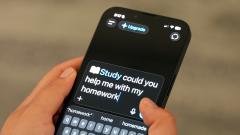
- Chatbot: An AI tool that has conversations with a person to answer questions, give information, or help complete a task. This technology is still new and changing quickly.
- Diagnostic Tools: A feature in a learning program that uses data to estimate a student's skill level or find gaps in their learning.
- Generative AI: AI tools that create text, images, or computer code, like ChatGPT. Teachers increasingly use these tools to save time, and some schools are discussing whether students should use them too.
Keeping Kids Safe and Protecting Their Privacy Online
State and federal laws set rules for how schools use technology with students. These laws affect how your child's information is collected, kept safe, and used, and schools must follow certain steps to protect that information.
- CIPA (Children's Internet Protection Act): A federal law that requires schools and libraries to block harmful or inappropriate content online.
- COPPA (Children's Online Privacy Protection Act): A federal law that says apps and websites need a parent's permission before collecting personal information from kids under 13. This is one reason schools ask parents to sign consent forms for technology.
- FERPA (Family Educational Rights and Privacy Act): A federal law that protects the privacy of your child's school records and limits what the school can share about them.
- Filtering/Monitoring Software: Programs that schools put on school devices to block inappropriate content, keep track of what kids do on the device, and flag warning signs of bullying or a mental health crisis.
- Personally Identifiable Information (PII): Any information that could be used to identify a specific person, like a full name, address, phone number, email, or photo.
Use this guide to follow along at a school board meeting, a teacher conference, or just to have a conversation with your kid about their school day.

Recommended reads on this topic