


Tech in Schools: The Tools Your Kid Is Using and Why
Easy to understand explainers for all the tech tools your school uses

We know. Another app. Whether your child has to log in to complete homework or you're using them to chat with their teachers, edtech tools have become part of modern education—for better and for worse.
There are lots of reasons schools adopt technology. From digital textbooks to streamlining parent communication, these apps and platforms can help expand a school's capacity and ability to serve all students. As parents and caregivers it can sometimes feel overwhelming or confusing to keep up with all the various tech tools (especially if you have multiple kids at different schools). And with kids on screens more than ever, we start to question every device or app that's put in front of them.
Understanding what's happening in your child's classroom is a great start to help you advocate on their behalf, and to having more productive conversations with your teachers and school leaders. Here are a few simple breakdowns of the types of tech your child's school may be using, including the purpose and typical amount of time your child may be spending on each one.
Core / Adopted Curriculum
The actual lesson materials a school uses to teach the different subjects from K–12
WHAT THEY DO
This is the actual set of lessons, texts, and materials a teacher uses to teach a subject all year — think of it as the digital textbook tied directly to grade-level standards. Schools usually pick one program for reading/ELA and one for math, sometimes called the "core" or "adopted" curriculum.
EXAMPLES YOU MIGHT SEE
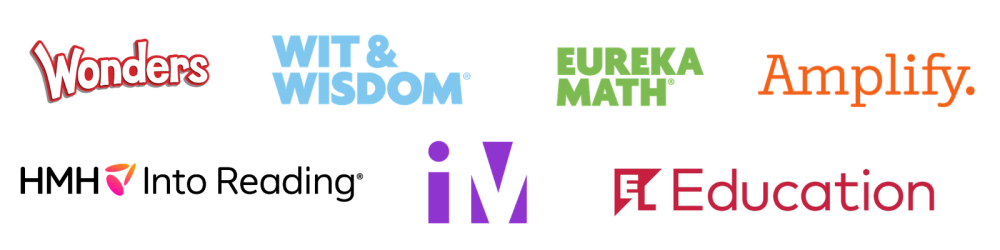
- Wonders / Into Reading (HMH) — K–6 reading & writing programs
- Wit & Wisdom (Great Minds) / EL Education / Amplify — reading programs built around full-length, grade-level texts
- Illustrative Mathematics — problem-based math curriculum
- Eureka Math — sequenced daily math lessons
HOW THIS SHOWS UP IN THE CLASSROOM
- Teachers across grade levels and schools within a district follow a pre-determined scope and sequence, where skills are taught in a specific order
- Teachers use a program's built-in check-ins and assessments and follow a district-approved pacing guide
WHAT THIS MIGHT LOOK LIKE AT DIFFERENT AGES
K-2: Heavy focus on foundational skills — phonics, letter sounds, early number sense — teacher-led, with a balance of small group and whole-group instruction.
3–5: Students read longer texts and solve multi-step problems; more independent practice and group work gets woven in.
6-8: Materials get more subject-specific (separate math, ELA, science, social studies); students take on more independent reading and writing.
9-12: Often organized by course rather than by grade (Algebra I, English 9); adoption can be looser here, so materials may vary more by teacher.
Personalized Learning & Skill-Practice Platforms
Reading & math practice that adjusts to your child, K–12
WHAT THEY DO
These programs start with a quick check of where your child stands — not the whole class. Schools often call this check-in 'the diagnostic.' From there, the program serves up practice questions and lessons matched to your child's own level, adjusting as they grow.
EXAMPLES YOU MIGHT SEE
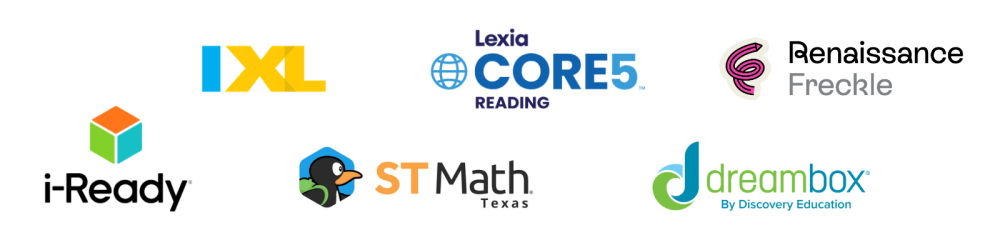
- i-Ready — reading & math practice
- IXL/ST Math — game-like practice across many subjects
- Lexia — reading-focused, often paired with foundational phonics
- DreamBox / Freckle — similar adaptive math or reading practice
HOW THIS SHOWS UP IN THE CLASSROOM
- Measures growth over time — compares scores across the year to see if students are actually moving toward or beyond grade-level skills
- Connects to classroom or state test scores — checks whether progress in the app also shows up as better grades or higher test scores
WHAT THIS MIGHT LOOK LIKE AT DIFFERENT AGES
K-2: Teacher-supported in small groups; short 10–15 minute sessions, a few times a week
3–5: Kids use it more independently, often during a rotation or center activity about 15–20 minute sessions, 2–4 times a week
6-8: Independent use; results can place kids into extra-help or intervention classes ~20–30 min/session; frequency varies by whether it's core lessons or intervention
9-12: Often targeted use — for kids needing support or making up a credit; varies widely, from none to 30–45 min sessions for kids in a support block
Learning Management Systems / Classroom Hubs
The online home base for assignments and class updates, K–12
WHAT THEY DO
These apps offer one shared online place where students, teachers, and families can all see what's due, what's turned in, what's missing, and what feedback has been given. It's designed to help kids stay organized on their own—keeping a kid's assignments and deadlines in one spot so they spend less energy on organizing and more on the actual work.
EXAMPLES YOU MIGHT SEE
- Google Classroom — connected to Google Docs, Slides, and Drive
- Canvas — common in middle and high schools
- Schoology — similar assignment and gradebook hub
- Seesaw — popular in elementary grades, more photo-and-portfolio style for young kids
- Class Dojo — classroom communication, behavior tracking, and student portfolios
HOW THIS SHOWS UP IN THE CLASSROOM
- Consistent use across the school for every class and grade level
- Teachers post assignments, feedback, and grades throughout the school year
- Student and families check daily for due dates and to stay in the loop on due dates and updates from teachers
WHAT THIS MIGHT LOOK LIKE AT DIFFERENT AGES
K-2: Mostly for teachers to post things. Little ones need an adult's help logging in and finding their way around.
3–5: Kids start checking it themselves, but they're still learning to track due dates—family notifications matter here.
6-8: A different feed for every class means staying organized becomes a real, explicit skill kids are learning.
9-12: Feels more like a workplace tool—deadlines, messages, follow-up—and schools often intentionally reduce family visibility to let teens take ownership.
Interactive Displays (“Smart Boards”)
Interactive touch display for whole-class teaching, K–12
WHAT THEY DO
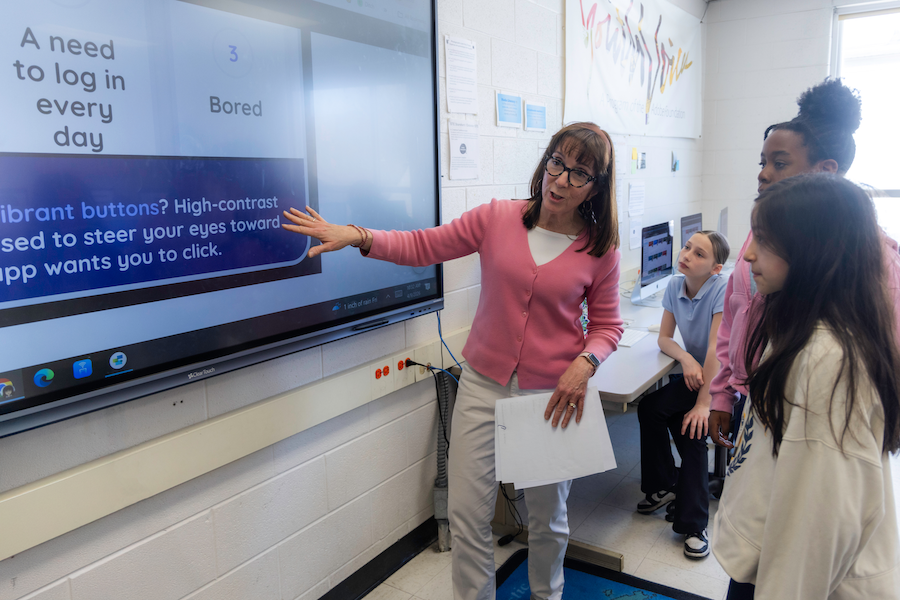
A large touch-screen board connected to a computer that lets a teacher (or a student) write, draw, play videos, and interact with digital content in front of the whole class. “Smart board” gets used the way “Kleenex” does—SMART is actually just one specific brand.
EXAMPLES YOU MIGHT SEE
- SMART Board — the original and most widely recognized brand
- Promethean ActivPanel — a common alternative in many districts
- Samsung / LG interactive displays — increasingly common flat-panel options
HOW THIS SHOWS UP IN THE CLASSROOM
- Lessons stop being just listening and start being hands-on. Kids can walk up, touch, draw, and move things around on the screen.
- Teachers use the interactive features regularly — writing, dragging, and demonstrating — rather than just projecting still slides
- Notes and annotations get saved and shared, so absent students and families can see exactly what was covered
WHAT THIS MIGHT LOOK LIKE AT DIFFERENT AGES
K-2: Mostly teacher-led — big colorful visuals, read-alouds, and simple touch games, with kids taking turns coming up one at a time.
3–5: Kids interact more directly—dragging, matching, and solving problems right on the board, often in small groups.
6-8: Used for presentations and simulations; students may bring their own work up to share and annotate in front of the class.
9-12: Often works more like a large shared screen for explaining text or data than a game-like touch activity.

Recommended reads on this topic